Awarded at Deloitte

#ApplauseAward
Project Snapshot
CAPACITY
Sole UX/UI Designer
DURATION
4 months (Nov '24 to Mar '25)
PLATFORM
Web app – desktop
STATUS
Tool is Live!
TAGS
Enterprise UX
Procurement Supply Chain
data intensive users
Agile Scrum
Global User base
IN A NUTSHELL
An internal supply chain optimization tool that enables global procurement managers to efficiently plan, adjust, and finalize supplier volume allocations.
IMPACT
Positive adoption and feedback from global supply managers
Significant improvement in planning efficiency
Contributed to supply-side savings amounting to several million dollars
Project Context
At Deloitte, consultants are typically aligned to one client engagement at a time. During this engagement, I was put in a POD team supporting a global technology enterprise that designs and sells laptops, desktops, servers, software, and computer accessories at scale.
The POD was responsible for building internal tools that helped with tracking and management of the company’s spends across its global supply chain. One of the key deliverables was the revamp of the existing TAM Optimization Tool—a mission-critical application that was struggling with poor usability, low trust, and inefficient workflows.
Although the tool technically fulfilled its functional purpose, it failed to integrate seamlessly into users’ real-world workflows. As a result, adoption was low and users continued to rely heavily on Excel, undermining the value of the system.
I was brought in to reimagine the TAM Optimization Tool end-to-end, with the goal of making it intuitive, efficient, and aligned with how global procurement teams actually work.
Understanding the Problem Space •. •. •. •. •. •. •. •. •. •. •. •. •. •. •. •. •. •. •. •
What is TAM?
Total Allocation Management (TAM) refers to the process of allocating volumes for a given part across multiple suppliers within a defined planning window.
For example, if a company needs to make x amount of LCD panels in a month and works with four suppliers, the total volume must be strategically distributed among the suppliers while accounting for:
Market conditions
Supplier performance
Geopolitical factors
Manufacturing constraints
This complexity multiplies rapidly when allocations must be made:
Weekly, monthly, or quarterly
Across 500+ parts
For multiple commodities (LCD, SSD, HDD, Battery, Memory, etc.)
At a global scale
Role of the TAM Optimization Tool
The TAM Optimization Tool is a Progressive Web App that:
Accepts structured inputs (primarily Excel-based)
Generates optimized allocation recommendations per part and supplier
However, since the system relies on static inputs, outputs must be:
Reviewed manually
Adjusted based on domain expertise
Approved by leadership before execution
⟡ The tool supports decision-making but does not replace human judgment.
About the User
45–50 global supply managers
Distributed across LATAM and EMEA
Operate in fast-paced, high-stakes environments
Responsible for creating and managing supply plans during each planning window
Key user traits:
Heavy reliance on Microsoft Excel
Highly personalised workflows and formulas
Strong resistance to moving away from Excel
Expectation of Excel-like flexibility in a web tool
“Make it as similar to Excel as possible.”
Strong preference for tables over charts
Difficulty articulating needs upfront
⟡ Designing for this group required balancing familiarity, control, and structure—without simply recreating Excel in a browser.
Key Challenges with the Existing Tool
Inefficient File Management
Users were required to upload input Excel files repeatedly for every planning window—even when most data remained unchanged—leading to frustration and wasted time.
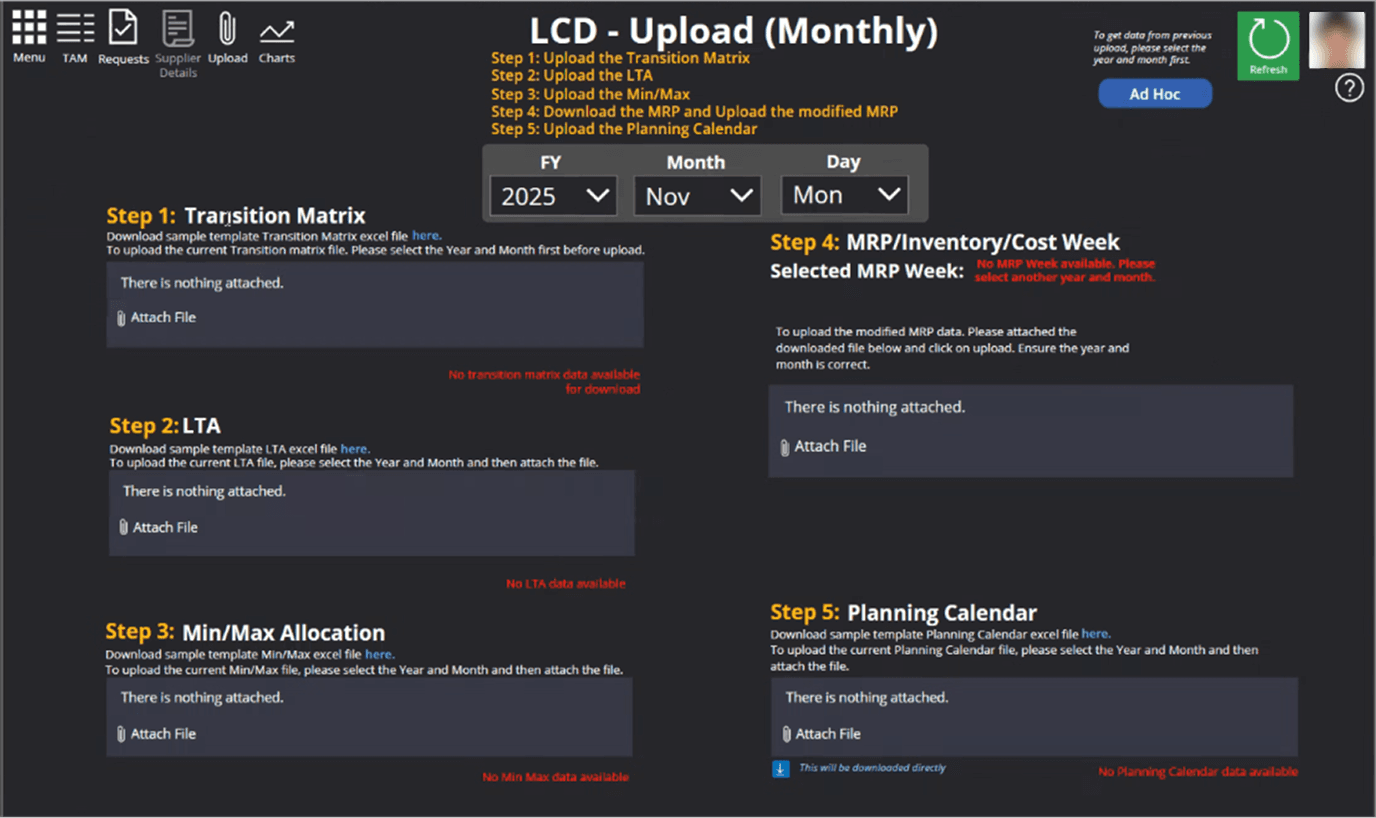
Each of the 5 steps required user to upload fresh excel files each planning window.
Poor Collaboration
Supply plans were shared via rotating Excel files across teams, making alignment slow, error-prone, and difficult to track.
Intimidating UI & Navigation
Built on Microsoft Power Apps, the interface appears overcrowded and confusing, making onboarding new team members difficult and reducing overall trust in the tool.
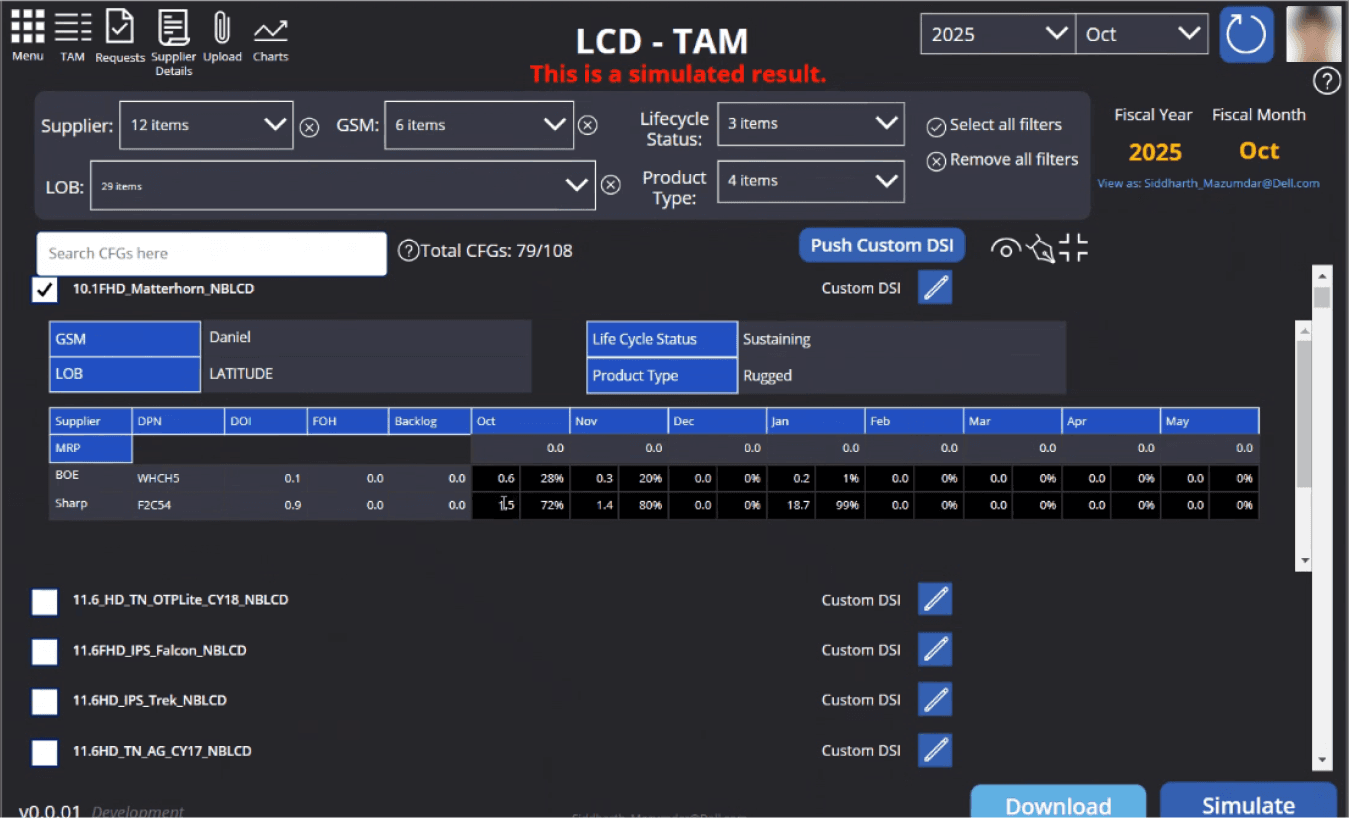
The UI was haphazard with random buttons placed in every corner of the screen.
Lack of Scenario Comparison
There was no way to compare multiple allocation scenarios as the tool only allowed production of one, forcing users back to Excel for manual analysis.
My Role
I joined the project as the sole UX/UI designer, owning the experience end-to-end.
My responsibilities included:
Understanding complex supply chain workflows
Defining the user journey and information architecture
Designing interactions and visual interfaces
Driving alignment across product, design, and engineering
Creating custom components beyond the existing design system
Delivering developer-ready designs and prototypes
⟡ Because I worked across both UX and UI (usually there is a dedicated person assigned for each), I played a key role in shaping not just how the product looked—but how it functioned and evolved.
Collaboration & Stakeholders
Although I worked independently as a designer, success depended on close collaboration with multiple teams:
Client Stakeholders: POD Lead, Product Owners, Business Analyst/User
Design Leadership: Design Managers, Senior Visual Designer
Engineering: Dev Lead, Front-end, Back-end, API, Database, and QA engineers
⟡ This setup required constant alignment, negotiation, and clarity, especially since many stakeholders were non-designers but deeply invested in the tool's success.
Design Approach & Execution
1
Requirement Understanding & Domain Immersion
I began by deeply understanding TAM as a process and how the existing tool supported it.
Conducted multiple walkthroughs with product owners
Reviewed meeting recordings and documented assumptions, gaps, and edge cases
⟡ This phase helped me move beyond surface requirements and understand how decisions were made under real-world pressure.
2
Mapping the Current State
I mapped the existing end-to-end user flow, placing screenshots of each screen within the task flow and annotating:
Usability issues
Experience gaps
Cognitive overload
Open questions
⟡ This artefact became a shared reference point for identifying what needed to change—and why.

Flow detailing all the major screens, start to end.
3
Rebuilding the User Flow & Information Architecture
It became clear that many issues stemmed from structural problems, not just visual design.
With guidance from my design manager, I:
Rebuilt the user flow from scratch
Iterated on multiple IA concepts
Finalized a structure that reduced complexity and clarified intent
⟡ Since client stakeholders were non-designers, they were informed of progress but not involved in early IA decision-making—allowing the foundation to be designed correctly before introducing visual bias.
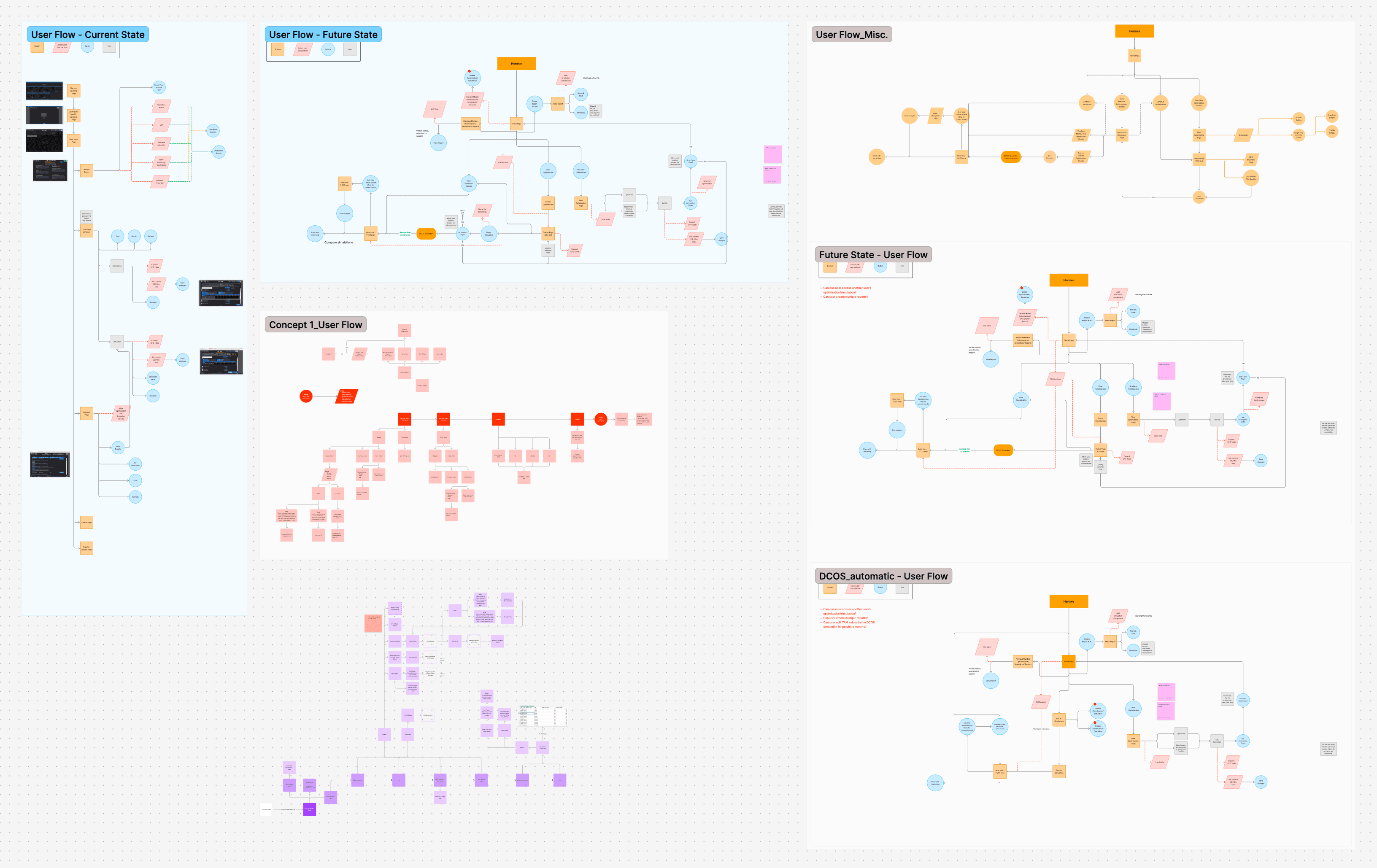
User flow iterations
4
Concept Iteration & Wireframing
Working in an Agile Scrum environment (10-day sprints), I took a module-by-module approach:
Prioritised critical workflows first
Took help from the internal LLM tool and web in defining the UX for tool.
Iterated wireframes with short feedback loops
⟡ I also facilitated a design brainstorming session with 8–10 designers from other POD teams to explore alternative solutions for complex interaction challenges within TAM designs.
5
Final Visual Design & Prototyping
Once concepts were validated:
Transitioned designs to high fidelity using the design system
Ensured responsiveness across screen sizes
Took reference of other POD's tools for ecosystem consistency
Collaborated with a senior visual designer to elevate quality
⟡ Due to limitations in the existing design system, I designed 10–12 custom components which were later reused by other POD teams facing similar challenges.
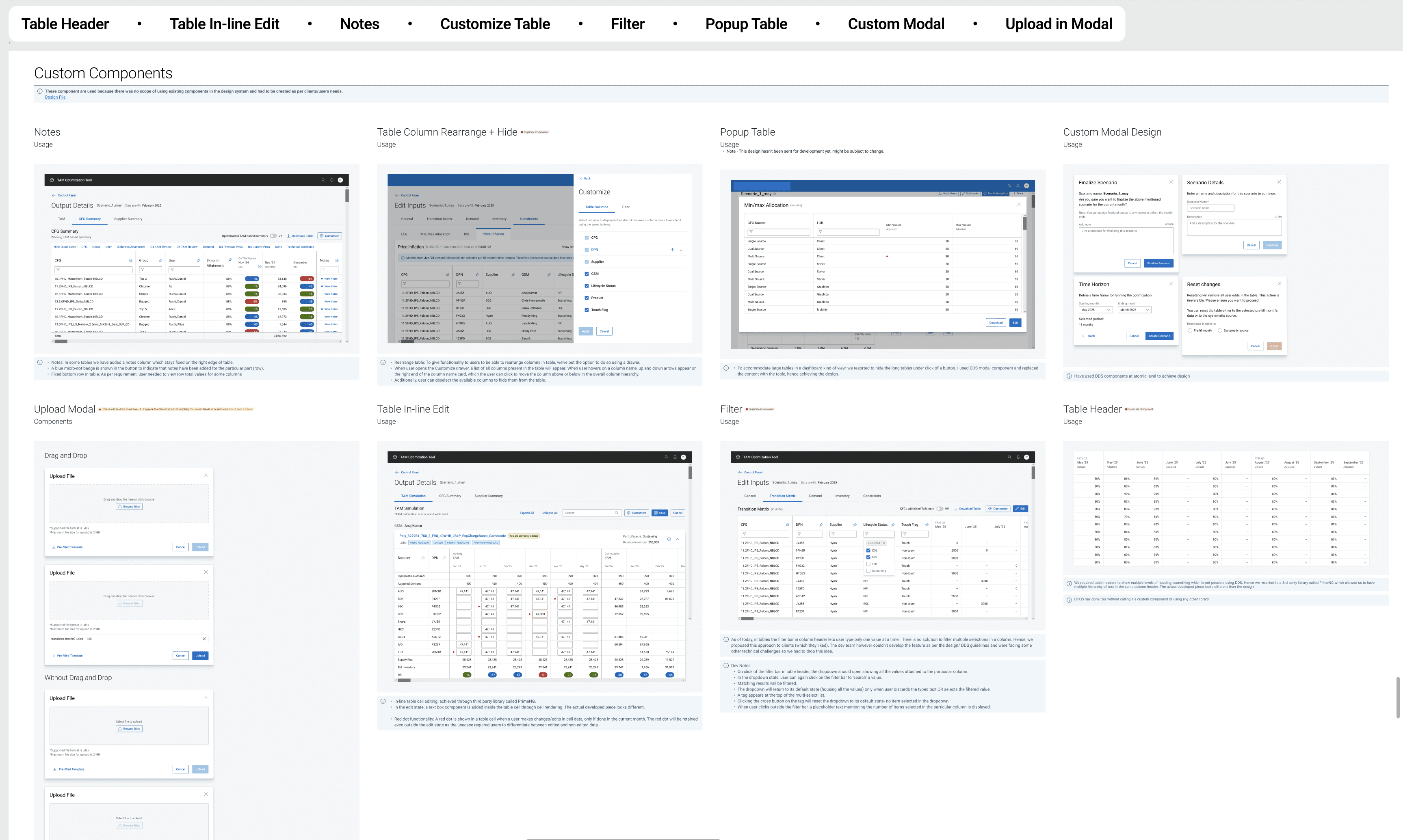
Built several custom components, most of them were approved.
⟡ I also delivered an end-to-end interactive prototype, enabling:
Faster engineering alignment
Early user feedback
Client buy-in before development completion
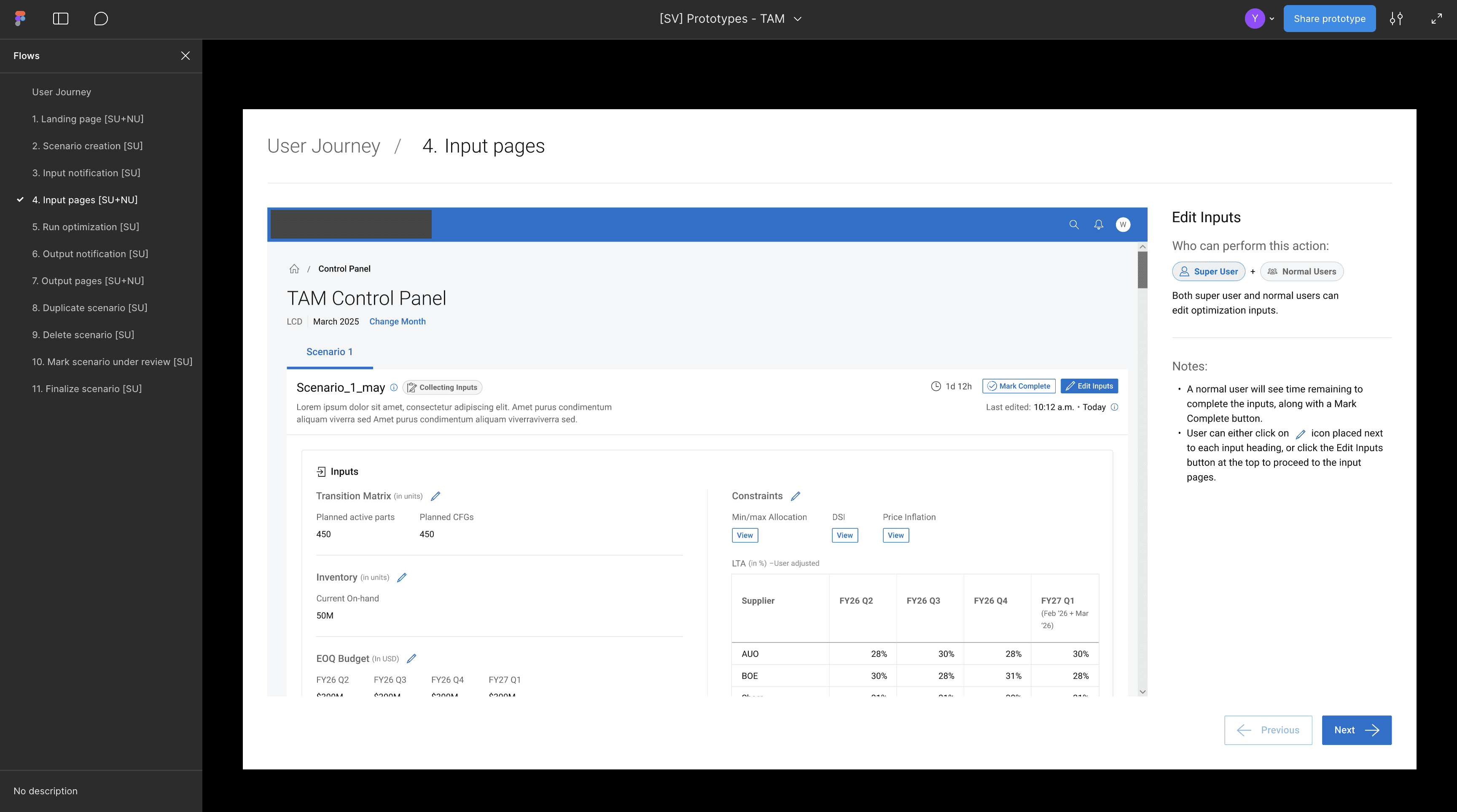
End-to-end prototype –
Modules were separated on the left hand panel.
Enabled scrolling in the prototyped screen to show full page contents.
Provided notes for each screen for the dev and leadership.
User can click the Next and Previous buttons at the bottom right to navigate through the flow.
6
Review, Validation & Handoff
Each feature went through a structured review cycle:
Product Review – usability and business alignment
Design Review – visual quality and flow
Engineering Review – feasibility (later streamlined)
Client Review – final approval
Post-approval:
Designs were documented in a developer hand-off Figma file
Screens included detailed annotations
I conducted design walkthroughs with the engineering team at the end of each sprint
Design Challenges & Solutions
Here are the key design challenges encountered during the TAM Optimization Tool revamp, along with how each was addressed.
Each solution was designed to reduce friction, improve confidence in decision-making, and align the tool more closely with real-world procurement workflows.
1. Simplifying a Complex Interface
Challenge
The existing interface was originally built as an interim solution using a low-code platform. While it met initial functional needs, the UI struggled to scale as teams, features, and complexity grew.
For users—especially new team members—the experience felt:
Overwhelming and unintuitive
Difficult to navigate
Hard to build confidence in without prior training
As a result, onboarding was slow and users lacked trust in the system.
The UI was haphazard with random buttons placed in every corner of the screen.
Solution
I redesigned the interface with a strong focus on clarity, hierarchy, and predictability.
Introduced a clean, structured layout with clear navigation
Leveraged existing design system components to ensure visual and interaction consistency across the ecosystem
⟡ The new UI not only looked more polished, but also enabled the introduction of several new capabilities—making the tool easier to understand, faster to operate, and more approachable for first-time users.
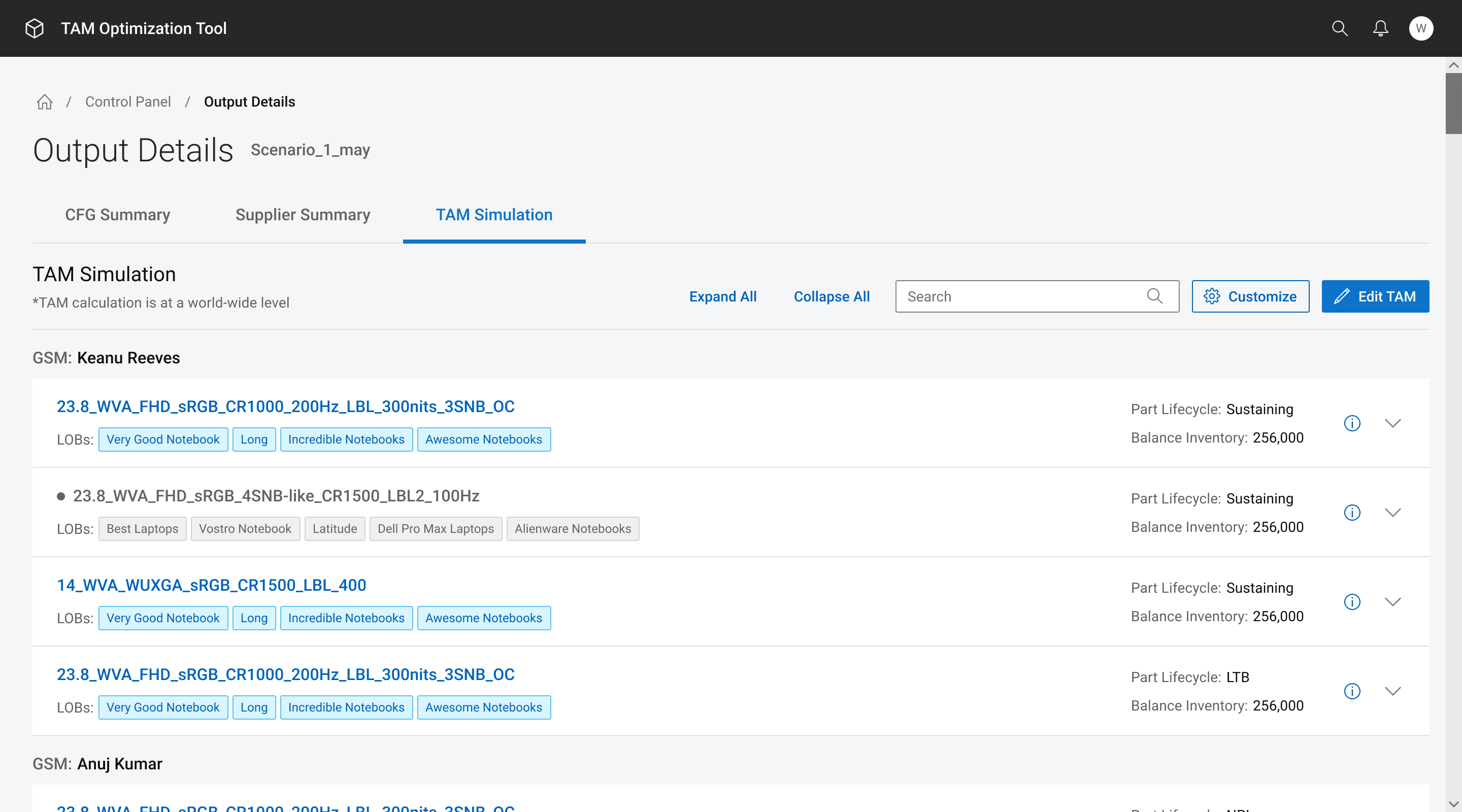
Same page as above, but cleaner, intuitive, and easy on the eyes.
Enabling Scenario Creation & Experimentation
Challenge
Previously, users could create only one scenario per planning window. This severely limited their ability to experiment with different assumptions or inputs.
As a result:
Users relied on guesswork
Teams struggled to test “what-if” situations
Decision-making lacked confidence and flexibility
Solution
I introduced a multi-scenario model, allowing teams to create up to four scenarios per planning window.
Key benefits:
Users can experiment with different input combinations
Empty scenario slots can be used to explore output variations
Teams can iteratively refine allocations before finalizing a plan
⟡ This shift empowered users to make more deliberate, data-informed decisions, significantly improving productivity and reducing reliance on external workarounds.
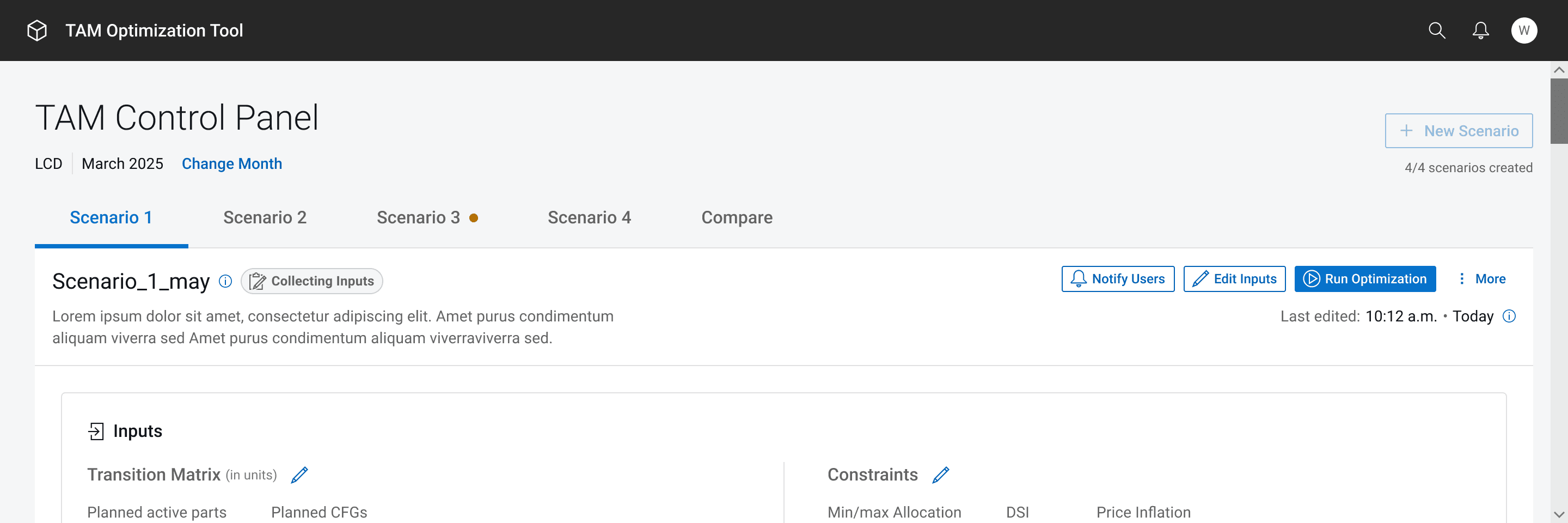
Having dedicated tabs one after the other for each scenario made the navigation simpler and quicker without compromising on visibility.
Comparing Scenarios Seamlessly
Challenge
User interviews revealed a strong need to compare multiple scenarios side by side. However, the earlier version supported only a single scenario, forcing users to manually compare outputs in Excel.
This made:
Leadership reviews slower
Insights harder to extract
Decision-making more fragmented
Solution
In the redesigned experience, whenever more than one scenario exists, a dedicated compare page is automatically introduced.
This page:
Displays structured, tabular comparisons of inputs
Shows clear differences in final outputs across scenarios
Breaks complex data into focused, comparable views
⟡ The comparison view became a critical tool for leadership discussions—enabling faster insights and more confident approvals.
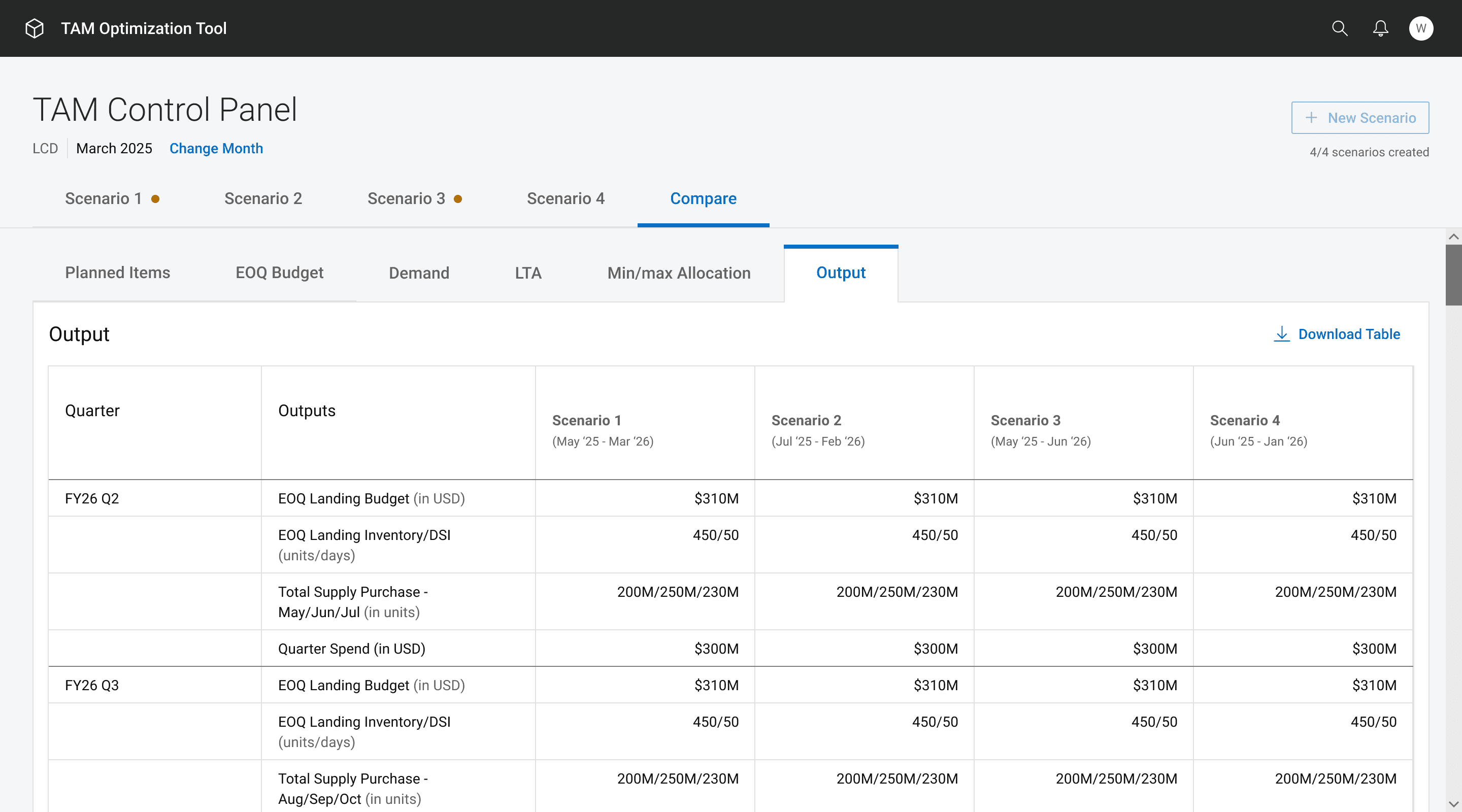
Users can quickly see a high-level comparison of five inputs and the output for all available scenarios here.
Introducing Version History & Traceability
Challenge
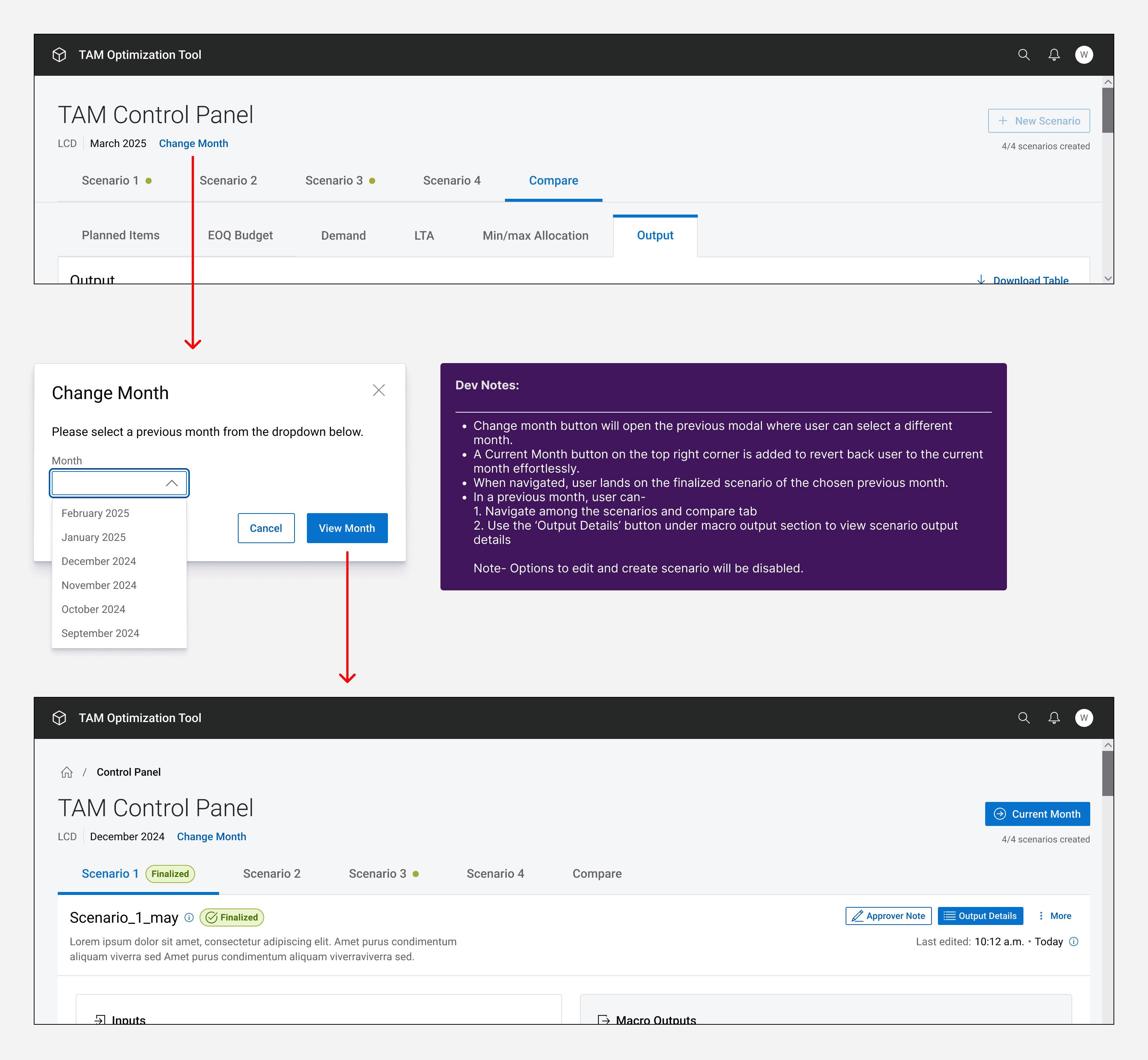
Be it a normal user, commodity manager, or someone from the leadership team– anyone might want visibility into the TAM plan from a previous month or several cycles earlier.
Without a version history feature:
Users depended on backend teams for ad-hoc data requests
Historical analysis was time-consuming
Transparency and traceability were limited
Solution
I designed a Version History feature that provides access to the past planning windows (12 max).
Users can now:
View previous allocation plans
Drill down into outputs
Inspect the exact inputs used in each scenario
⟡ This significantly improved transparency, reduced dependency on support teams, and enabled quicker retrospective analysis.
Rethinking File Management Workflows
Challenge
Starting a new scenario involved a repetitive and frustrating process:
Download last month’s Excel files
Make minor (or sometimes no) edits
Re-upload the same files again
Even when inputs didn’t change, users were forced to repeat this workflow—making the experience tedious, inefficient, and mentally draining.
Solution
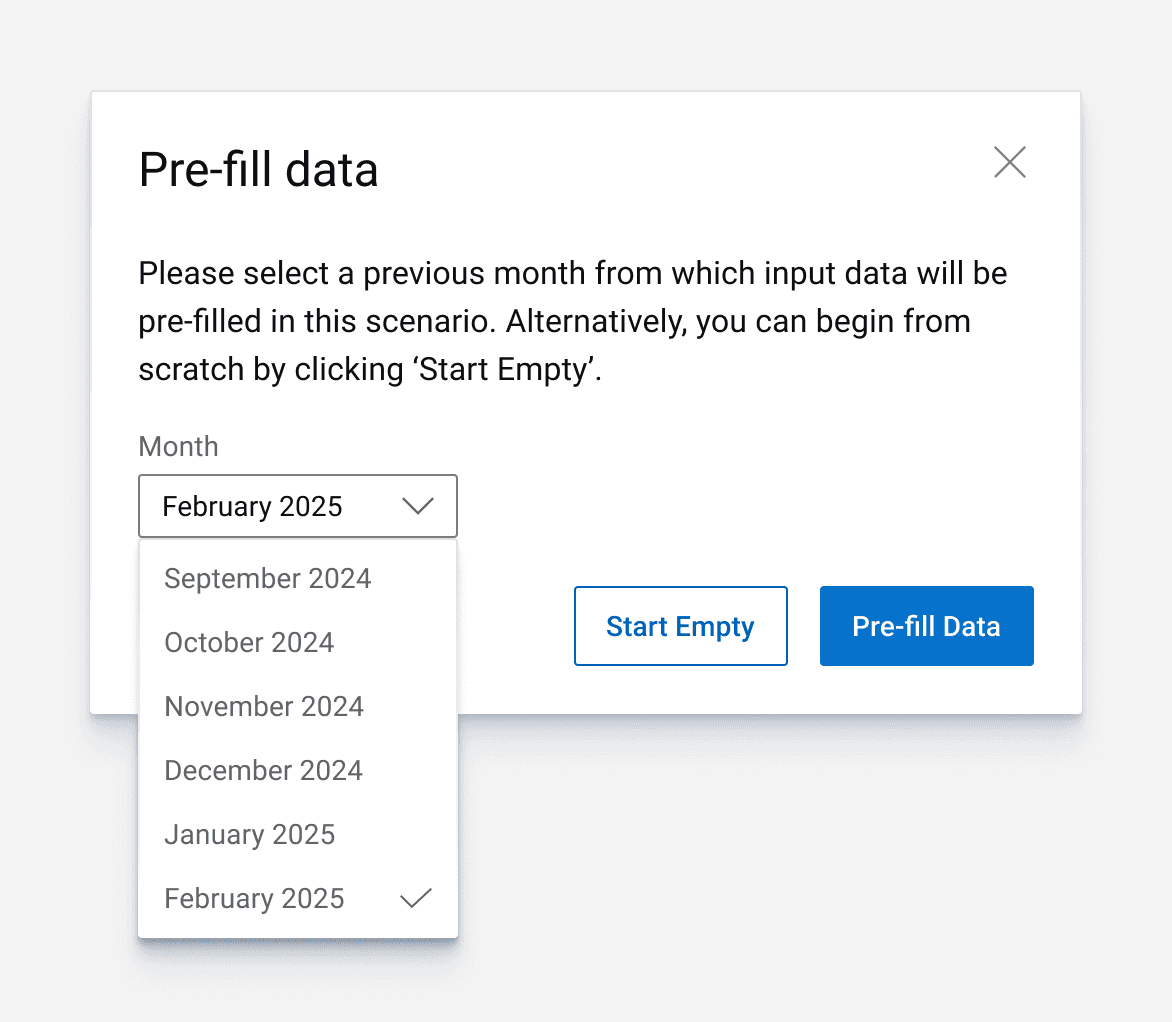
I introduced two flexible ways to start a scenario:
Build from a Previous Planning Window's inputs
Users can select a prior window
The finalized scenario’s input files are automatically carried forward
Inputs remain editable for incremental changes
Upload Fresh Input Files
Retains the original workflow for cases with significant data changes
⟡ This reduced redundant effort, respected existing habits, and dramatically improved the day-to-day experience.
Users can quickly see a high-level comparison of five inputs and the output for all available scenarios here.
Table Filter & Customisations
Challenge
MS Excel remained the users’ preferred working environment due to its flexibility. Even minor changes—such as editing a single cell—required re-uploading entire files into the tool.
Additionally, long and complex tables made Excel’s advanced filtering capabilities hard to replace.
Solution
I introduced in-tool table editing and customization, allowing users to:
Edit table data directly within the tool
Hide and unhide columns
Filter data within columns
Rearrange columns to suit personal workflows
To preserve familiarity:
User preferences were cached
Table configurations persisted across sessions
⟡ This enabled users to work the way they were used to—without leaving the tool, significantly reducing Excel dependency and speeding up workflows.
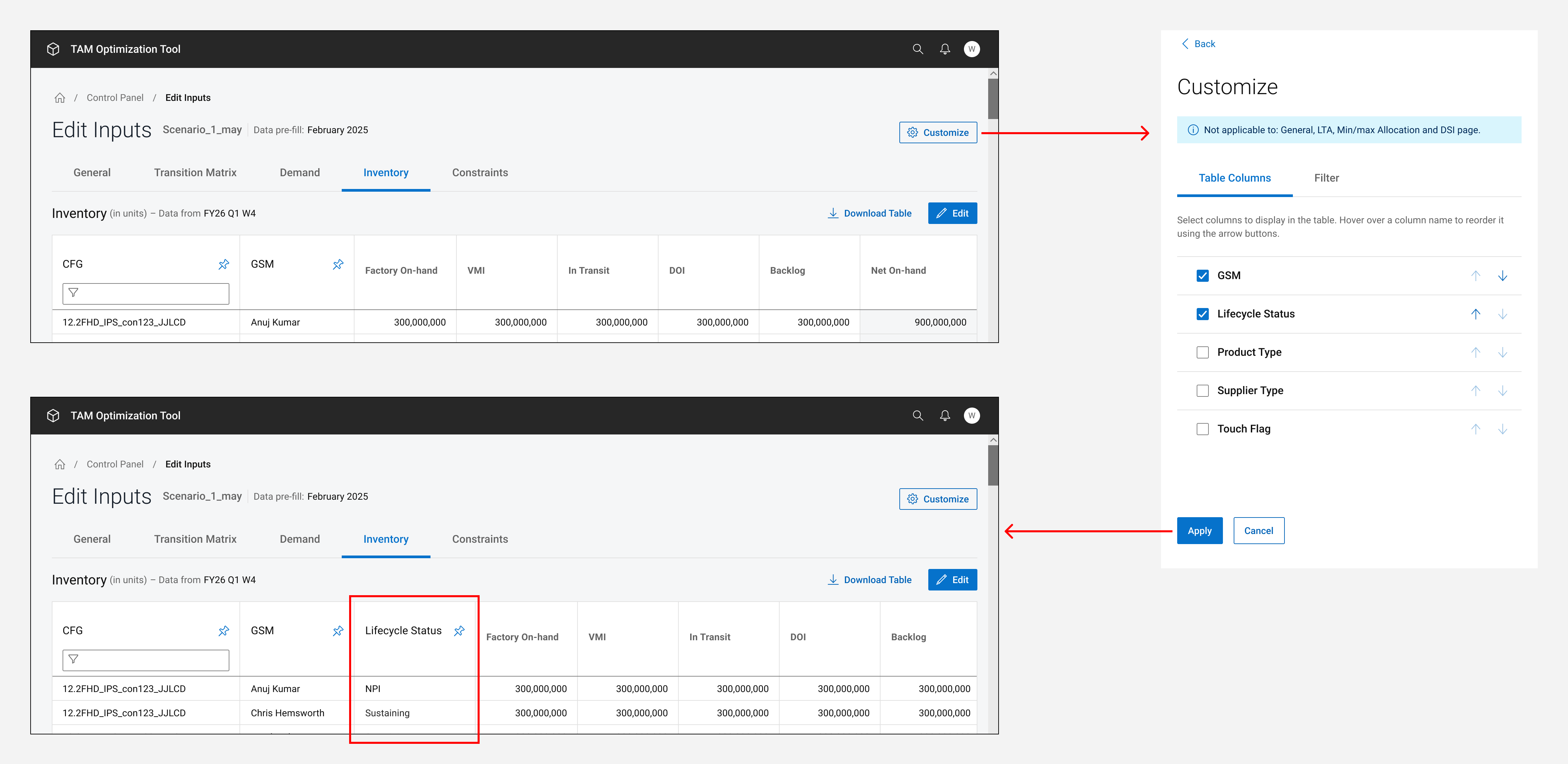
On the first tab of Customize drawer, user can select certain columns that they would want to view on the main table. The chosen columns can be rearranged on the table using the up and down arrow button on the same tab.
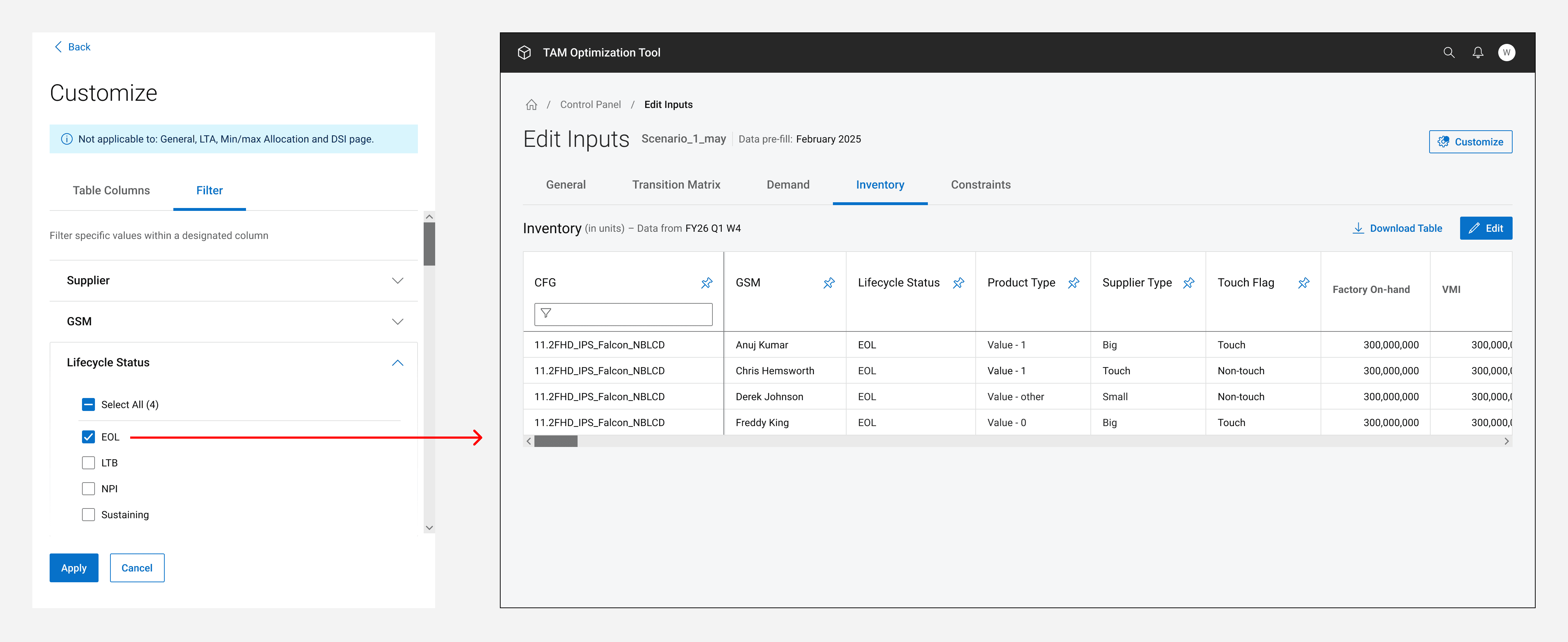
On the second tab, user can filter the columns selected on the first tab.
Designing A Collaborative Tool
Challenge
The earlier version lacked collaborative capabilities, resulting in:
Poor visibility into progress
Heavy dependency on key individuals
Frequent Excel file circulation
Slow decision-making and task delegation
As the tool matured, collaboration became essential rather than optional.
Solution
I redesigned the experience to support true in-tool collaboration:
Changes made by one user are visible to others after save
Certain tables support simultaneous multi-user editing
Scenario-level statuses provide clear visibility into progress
Additionally:
“Under Review” status locks outputs during leadership review
Only one scenario can be marked “Finalized” per planning window
⟡ This introduced structure, accountability, and transparency—while significantly reducing coordination overhead.
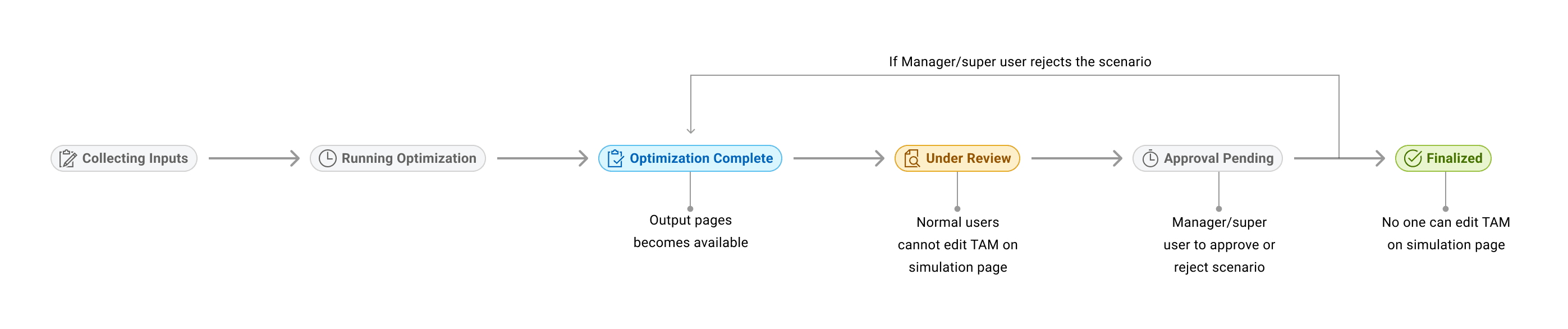
Statuses of a typical scenario arranged in a flow
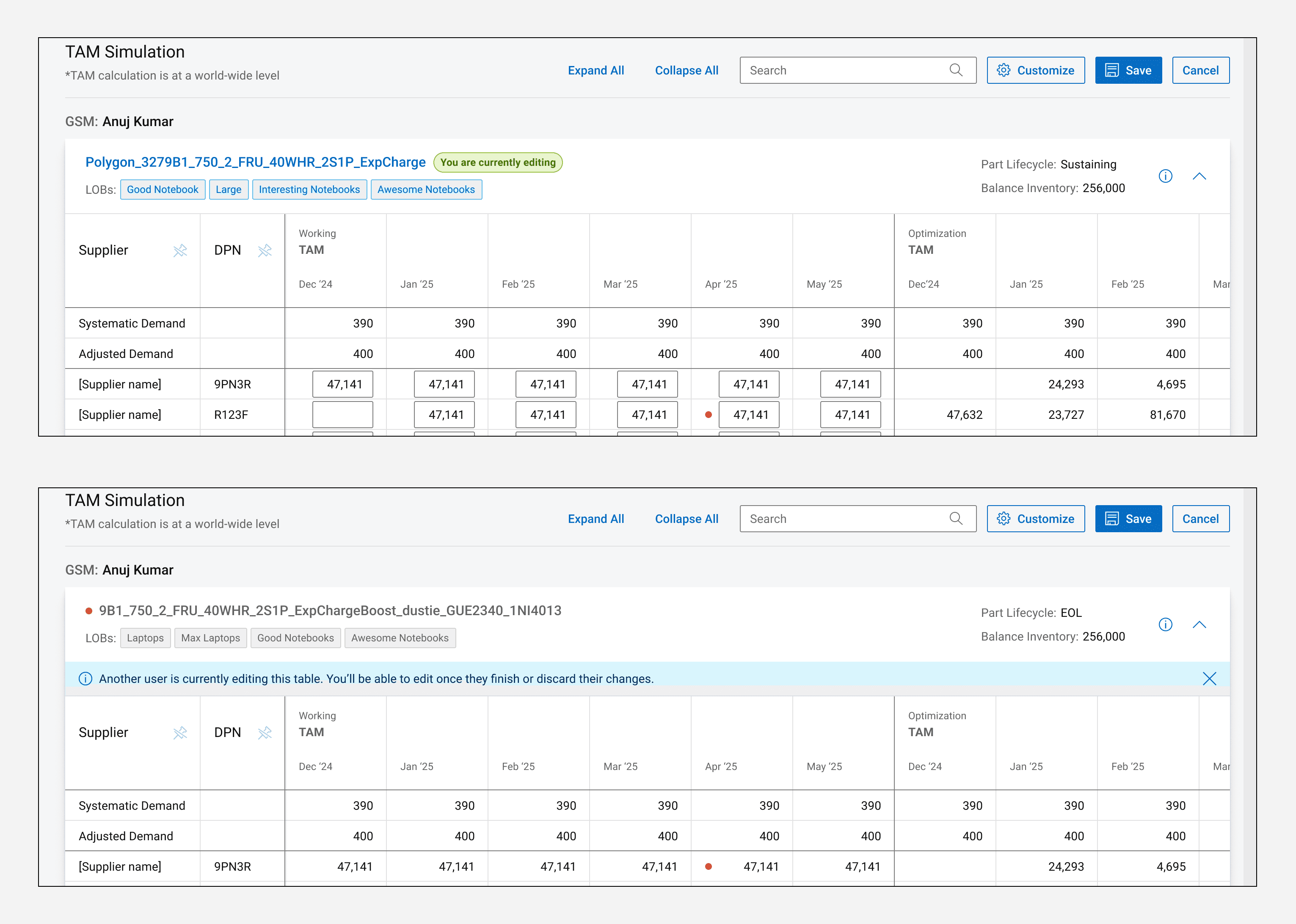
This page allows multiple users to edit simultaneously. The Edit button is at a global level and impacts all the tables on the page (placed one below the other). A table can be blocked from edit until the current editor saves their changes. When the table becomes available for edit, it will be shown in edit state again.
Core Screens
Control Panel-
The Control Panel serves as the central action hub:
Create and manage scenarios
Navigate between scenarios effortlessly
View summarized inputs and outputs at a glance
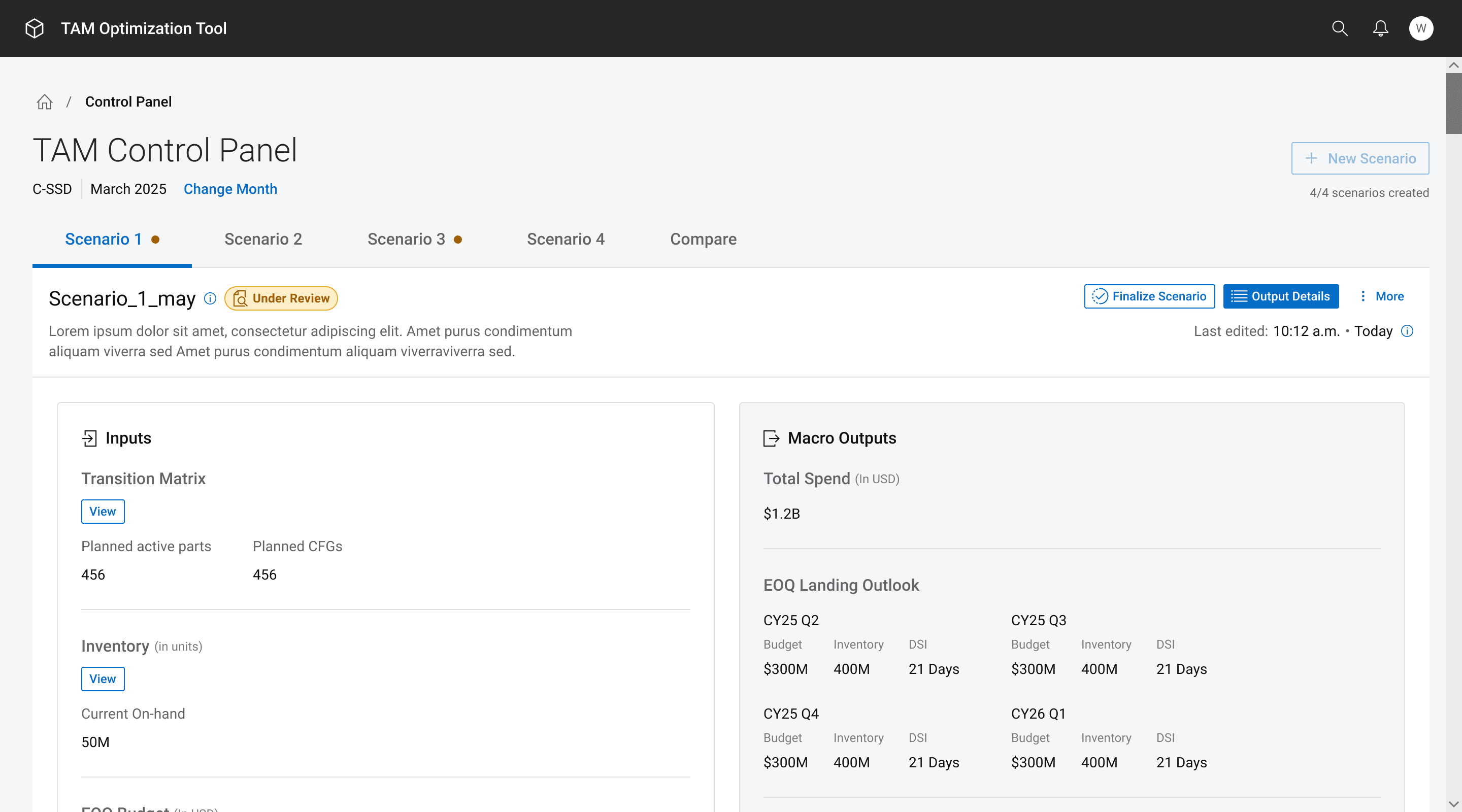
Users can quickly see a high-level comparison of five inputs and the output for all available scenarios here.
Control Panel - Design History
See how the above screen came to be

Home Page-
The Home Page sits above the Control Panel and provides:
High-level comparisons across scenarios
Visibility into current and past planning windows
A clear starting point for each planning cycle
⟡ Together, these interfaces brought structure and orientation to an otherwise complex system.
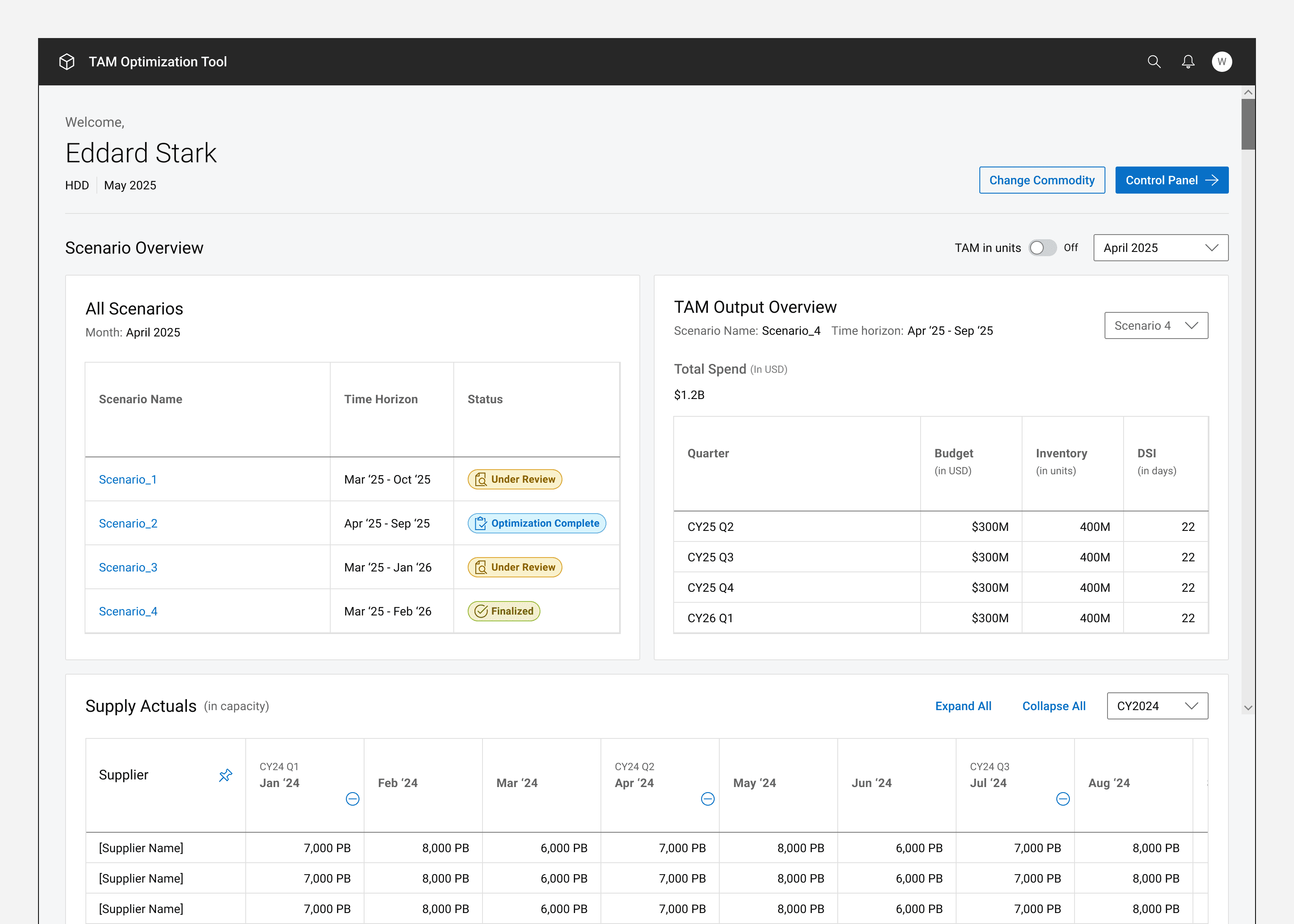
Users can quickly see a high-level comparison of five inputs and the output for all available scenarios here.
Outcomes & Impact
⟡ The revamped TAM Optimization Tool was successfully shipped to production with UAT clearance.
⟡ Global supply managers are actively using the tool
⟡ User feedback has been consistently positive
⟡ Planning workflows are significantly more efficient
⟡ The improved decision-making process contributed to multi-million-dollar cost savings on the supply side
End Note
This project reinforced the importance of designing for complex, real-world constraints—where usability, trust, and adoption matter more than novelty. Working as the sole designer on a high-impact enterprise tool allowed me to influence not just the interface, but the way global teams make critical decisions.
Thanks for scrolling!